Help · Guide 6 of 8
Get the mapping green
Check every criterion has an assessment behind it before you export.
5 minutes
Watch it
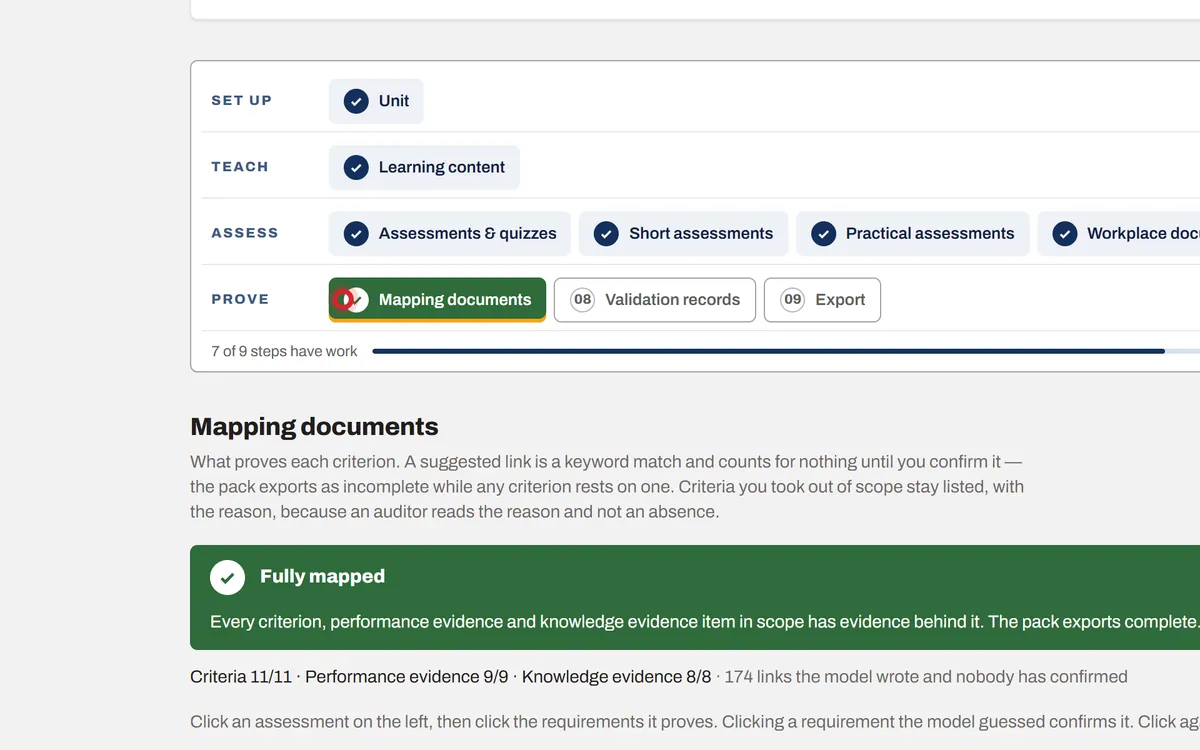
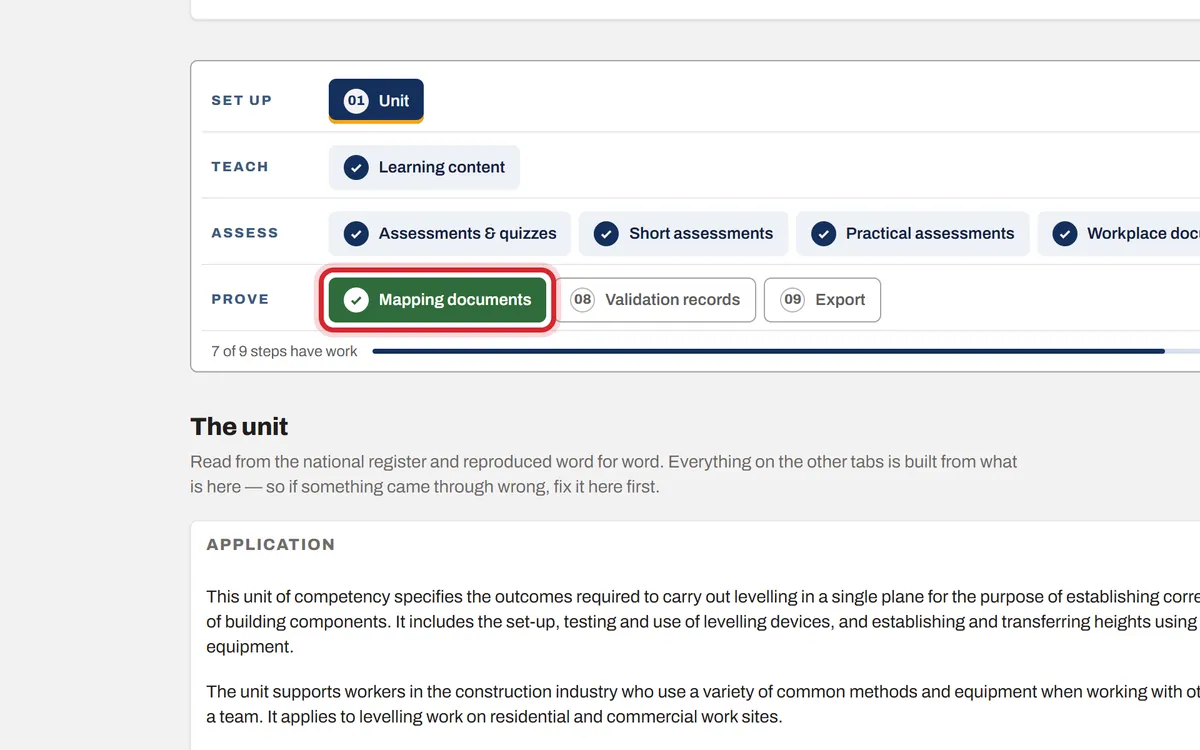
Step 1: Open Mapping documents
Step 07 is red while something is not covered and green when everything is.
Step 2: Look at All assessments
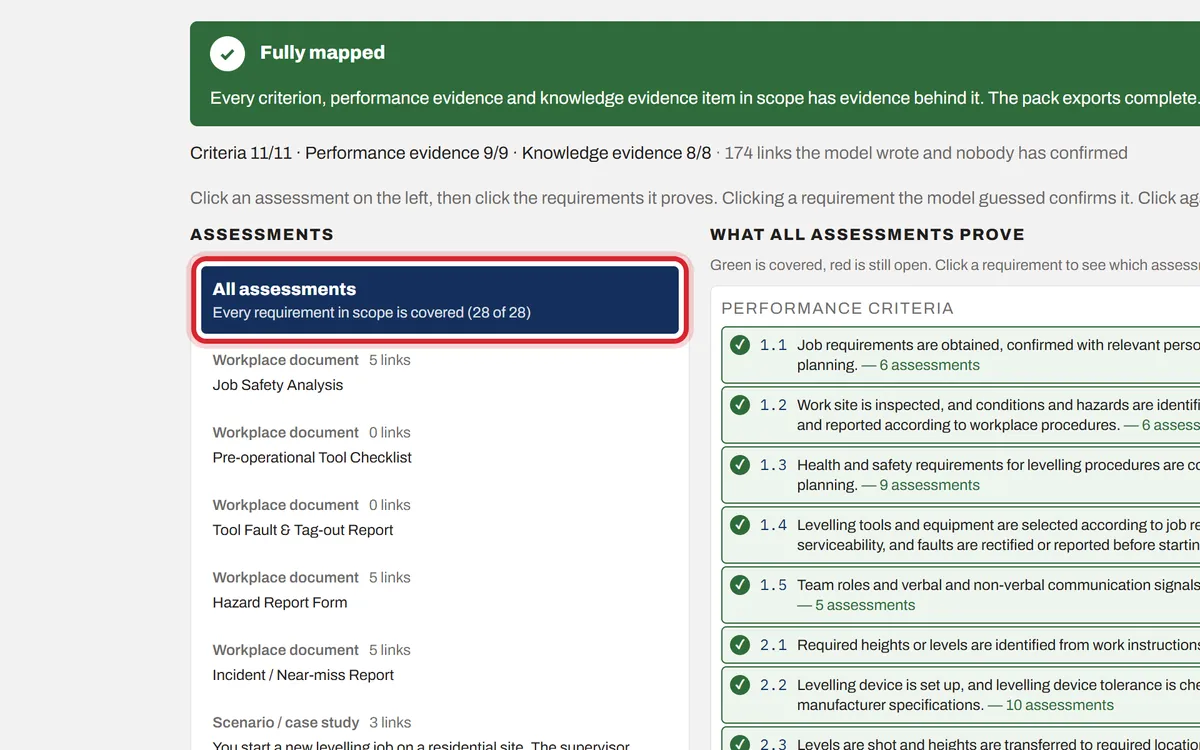
All assessments shows every requirement. Green means at least one assessment proves it. Red means nothing does yet. Click a requirement to see which assessments prove it.
Step 3: Fix anything red
Click an assessment on the left, then click the red requirement it proves. Or go back to step 03 to 06 and add an assessment that covers it. The banner says Fully mapped when you are done.