Help · Guide 4 of 8
Add pictures and edit the course
Make a picture for every page, change the words, add your own photos and videos.
About 4 minutes for pictures, then as long as you like
Watch it
Step 1: Make the pictures
On Learning content, press Make pictures for … pages. It makes one picture for every page that has none, and never pays for a page twice.
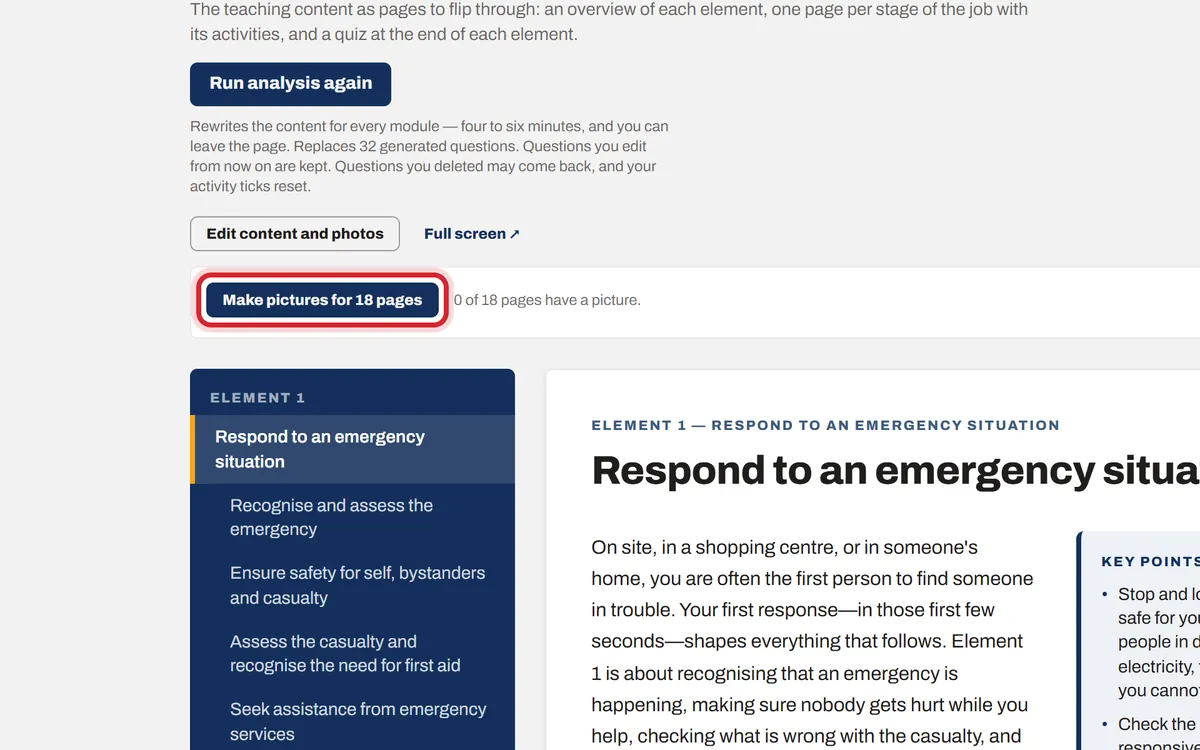
Step 2: Edit the words and photos
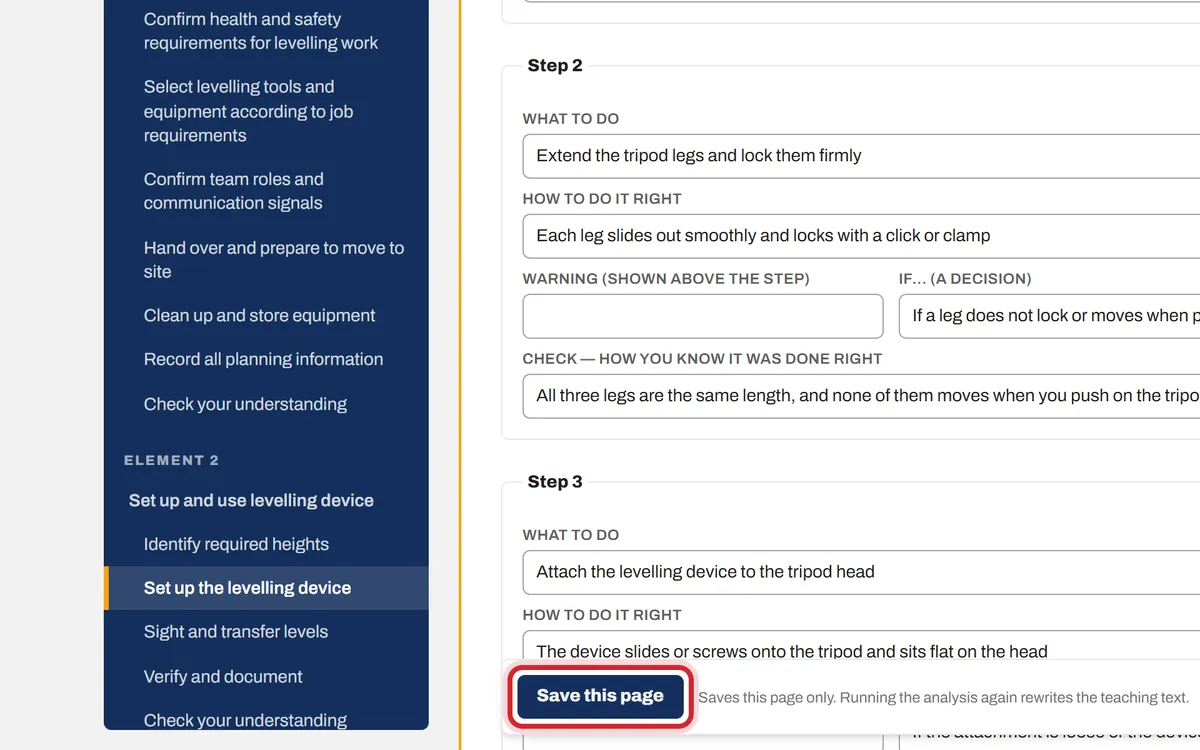
Press Edit content and photos. Each page opens for editing in place. Change any wording, upload your own photo, or press Make a new AI picture for just that page. Press Save this page on each page you change.
Step 3: Add a YouTube video (optional)
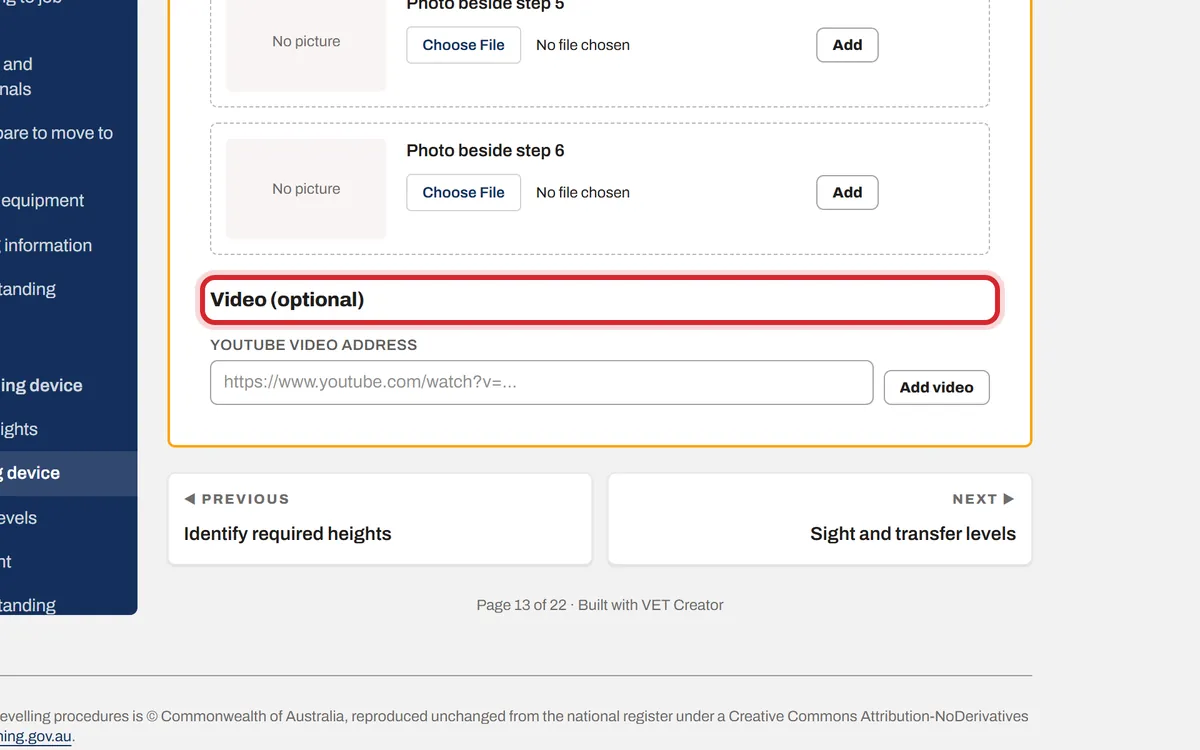
While editing, any page can take a YouTube link under Video. Paste the link and press Add video. It plays on that page only.
Step 4: See it as a student would
Press Done editing, then Full screen to read the course the way a student will see it.